
How To Get Your Planning Center API Codes
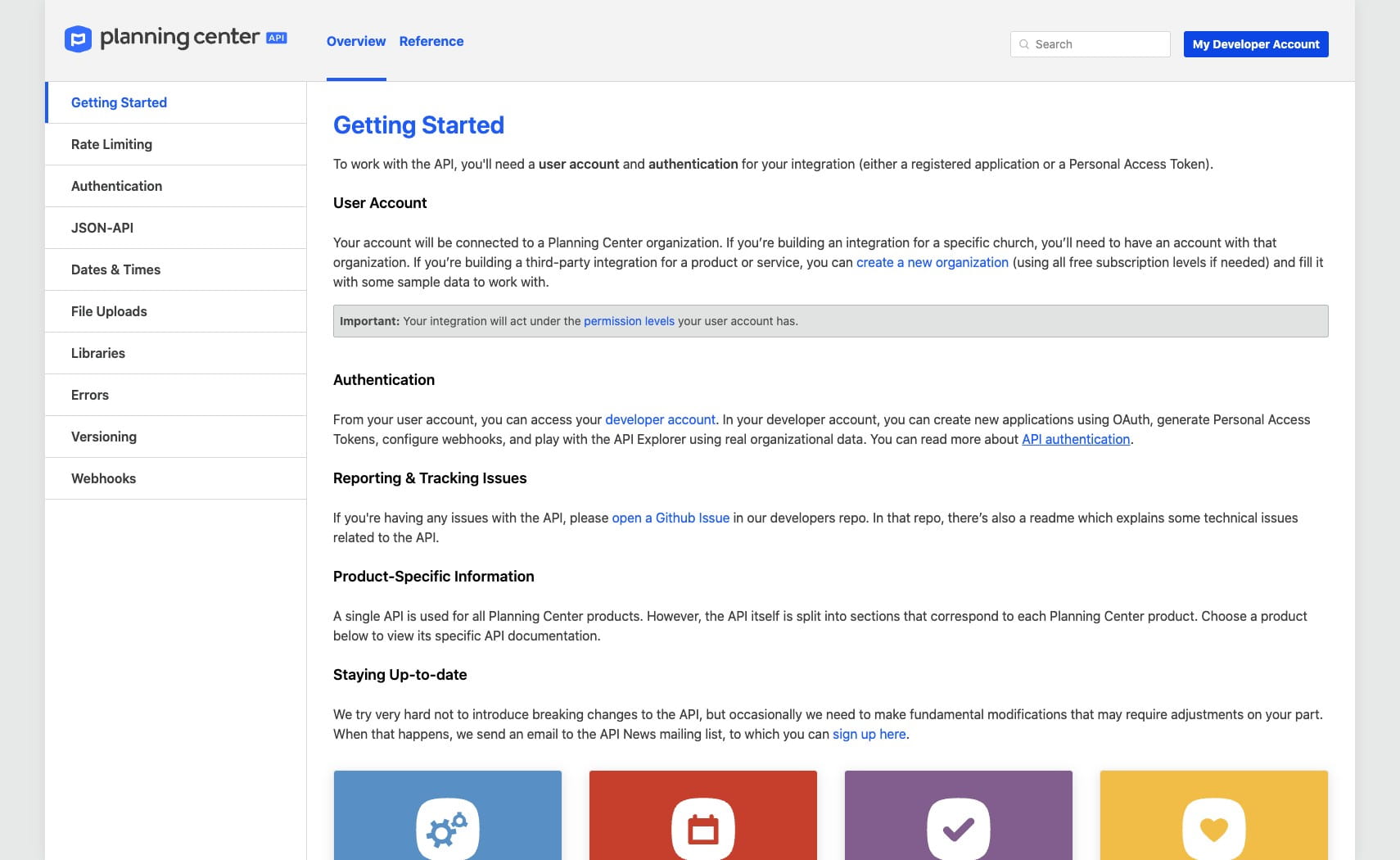
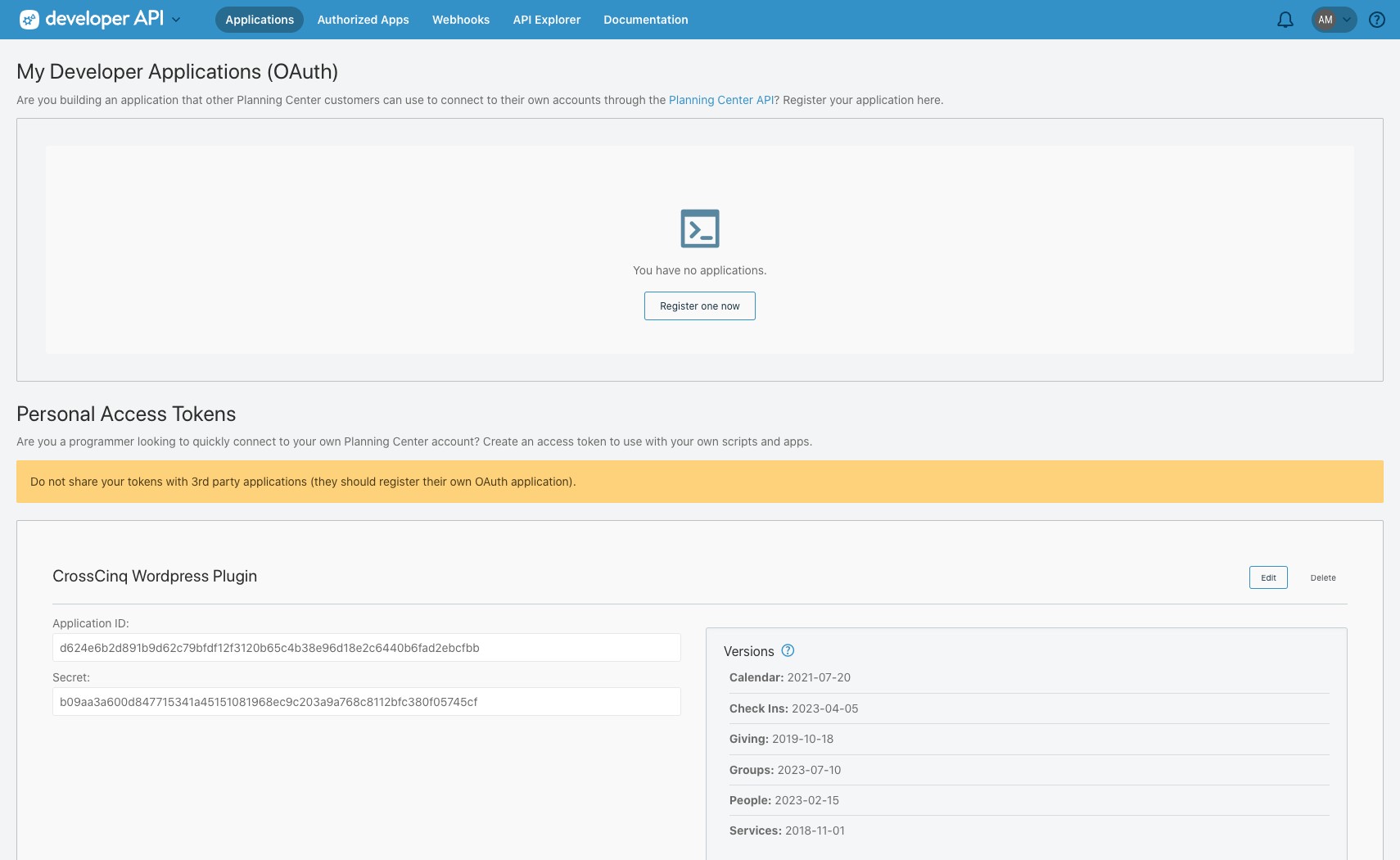
Login to Planning Center and navigate to https://developer.planning.center/docs/#/overview
Click on "My Developer Account" in the top right corner
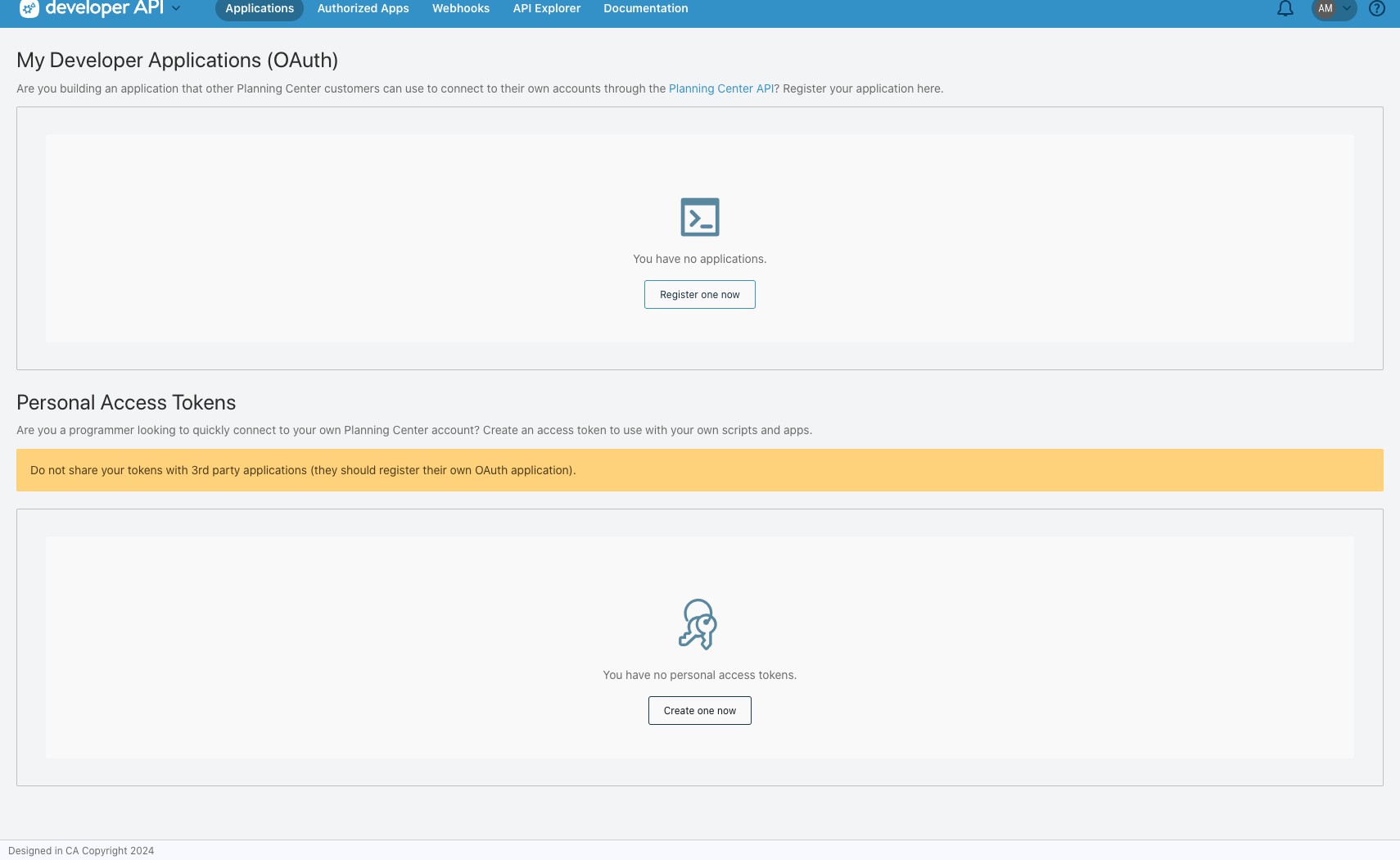
Click on "Create one now" in the "Personal Access Tokens" section
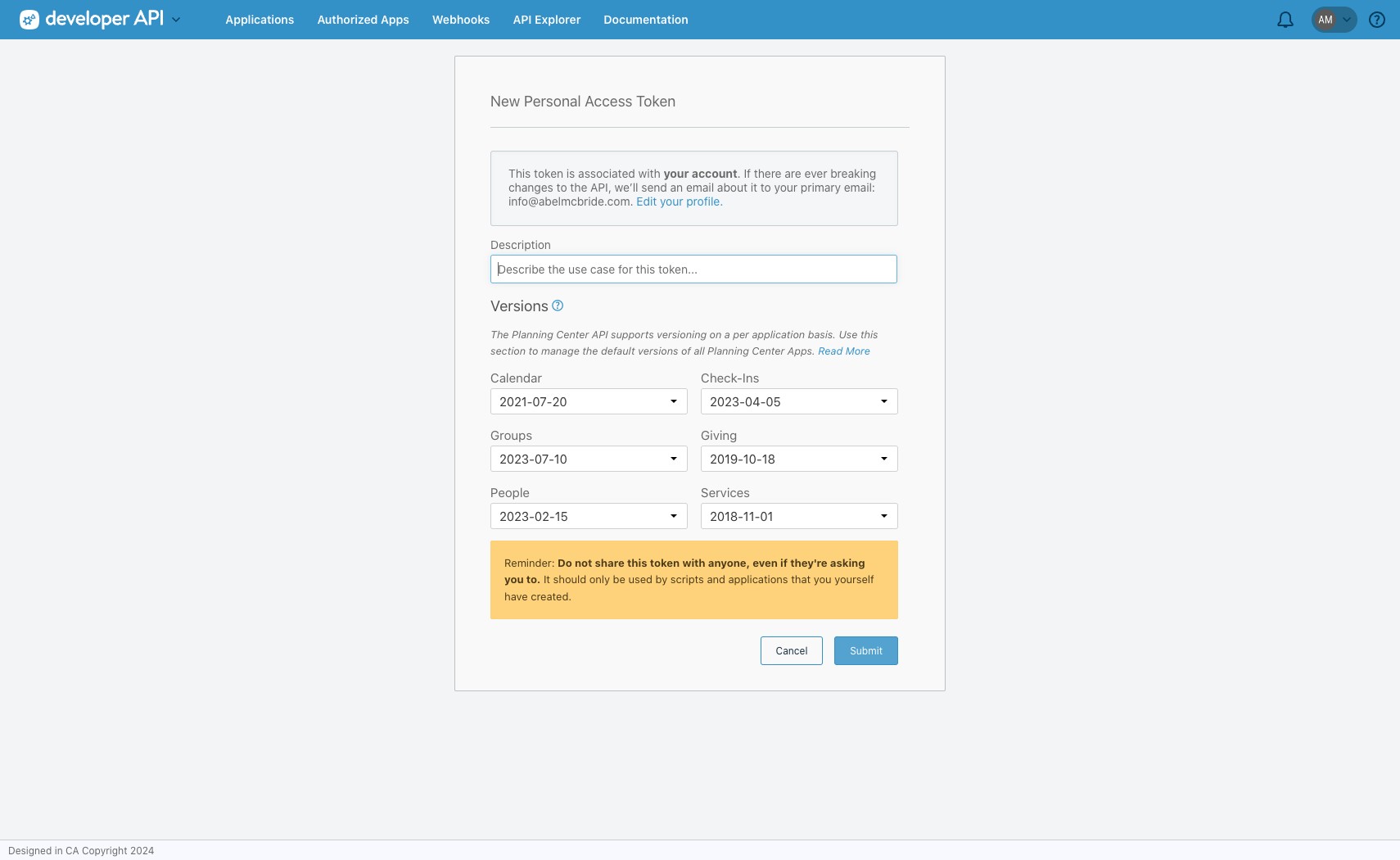
Type something in the "Description" text box. (ex: CrossCinq Wordpress Plugin)
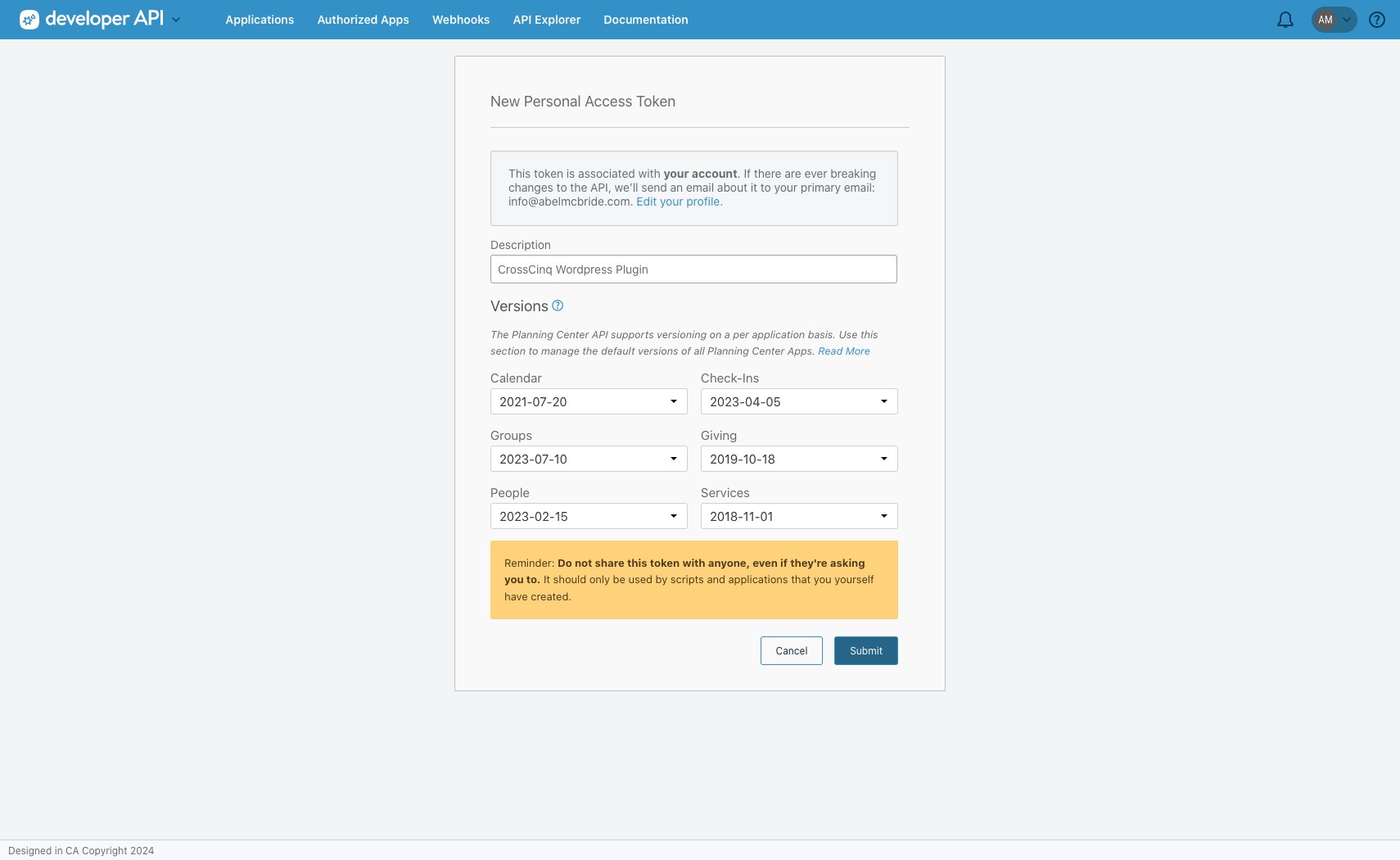
Click "Submit" in the bottom right corner
Copy the "Application ID" code
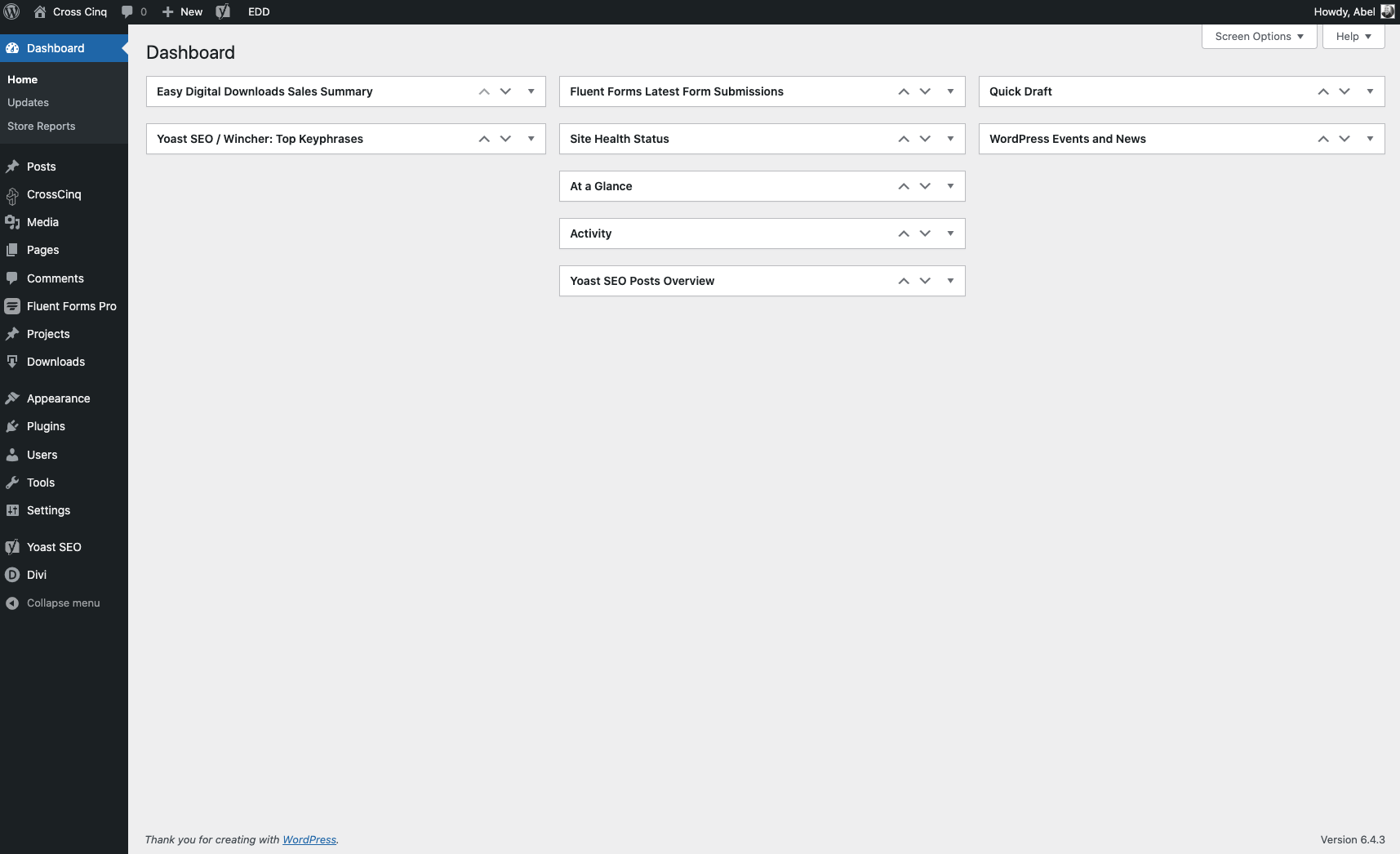
Login to the backend of your site and click on the "CrossCinq" menu option in the left sidebar
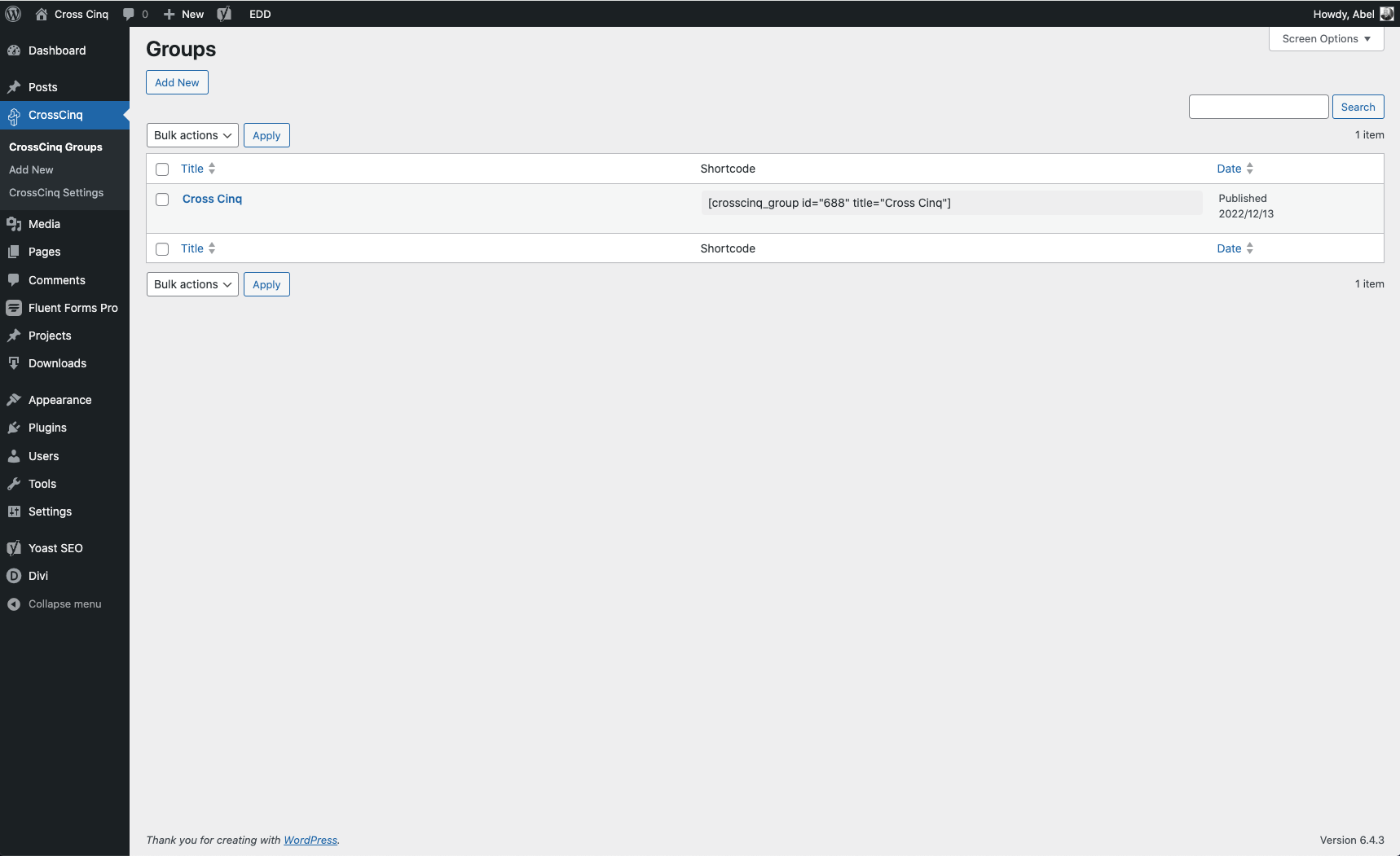
Click on "CrossCinq Settings" from the CrossCinq plugin option in the left sidebar
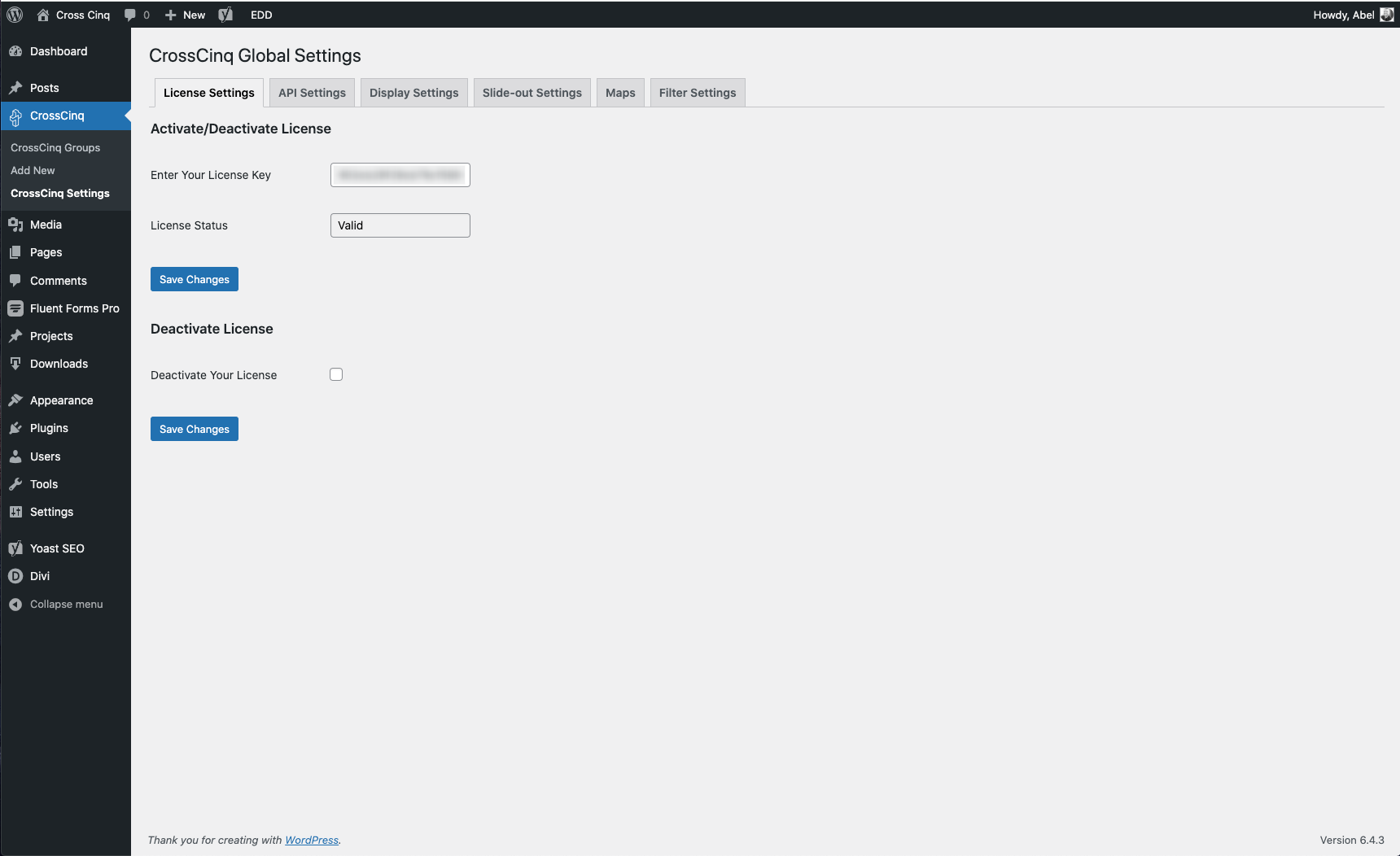
Click on the "API Settings" tab
Select "Planning Center" from the "Choose Your API" dropdown
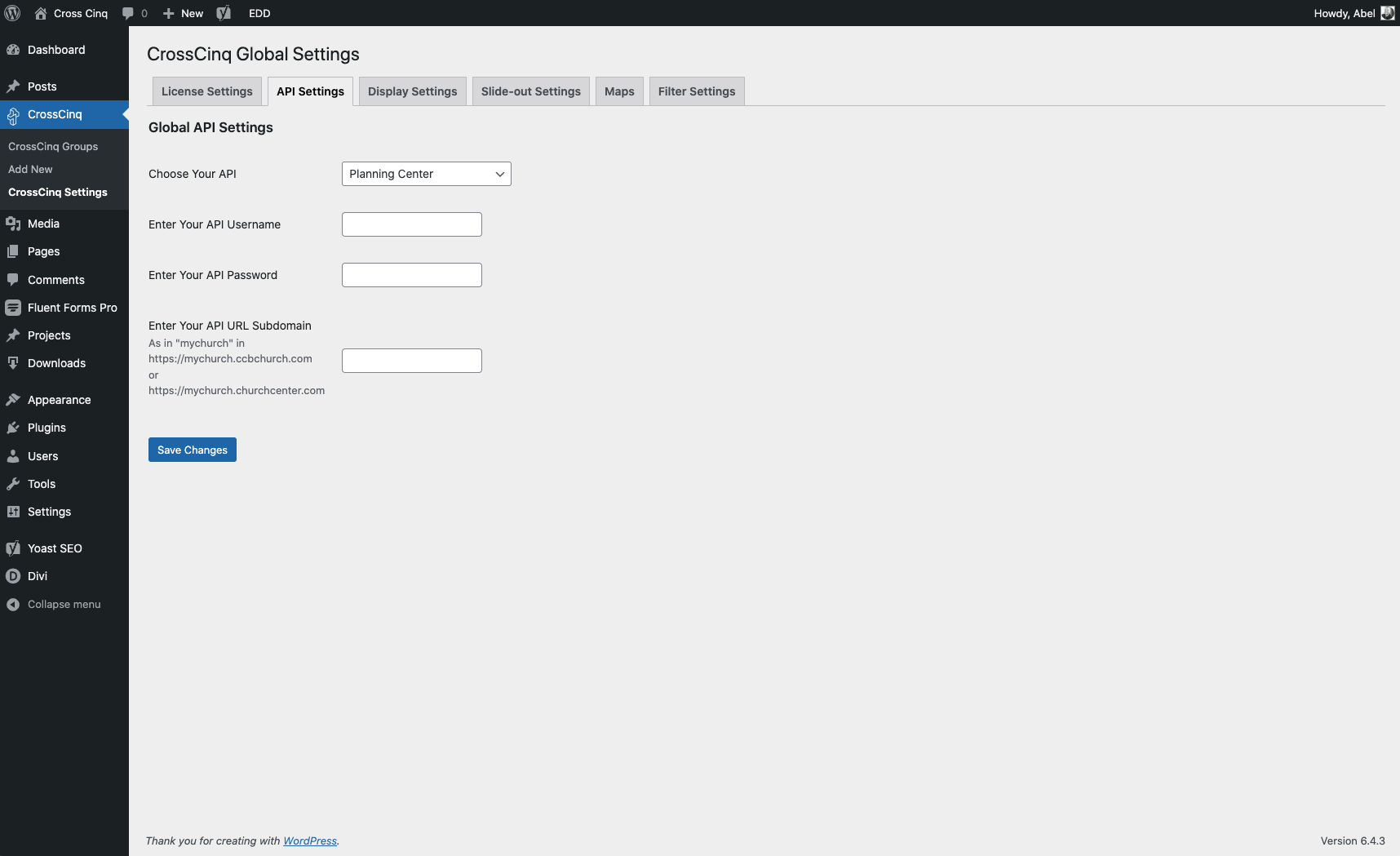
Paste the "Application ID" code, that you copied in step 6, in the "Enter Your API Username" text box
Go back to the Planning Center developer API page and copy the "Secret" code
Go back to your site and paste the "Secret" code, that you just copied, in the "Enter Your API Password" text box
Click the carrot in the top left corner, next to "developer API"
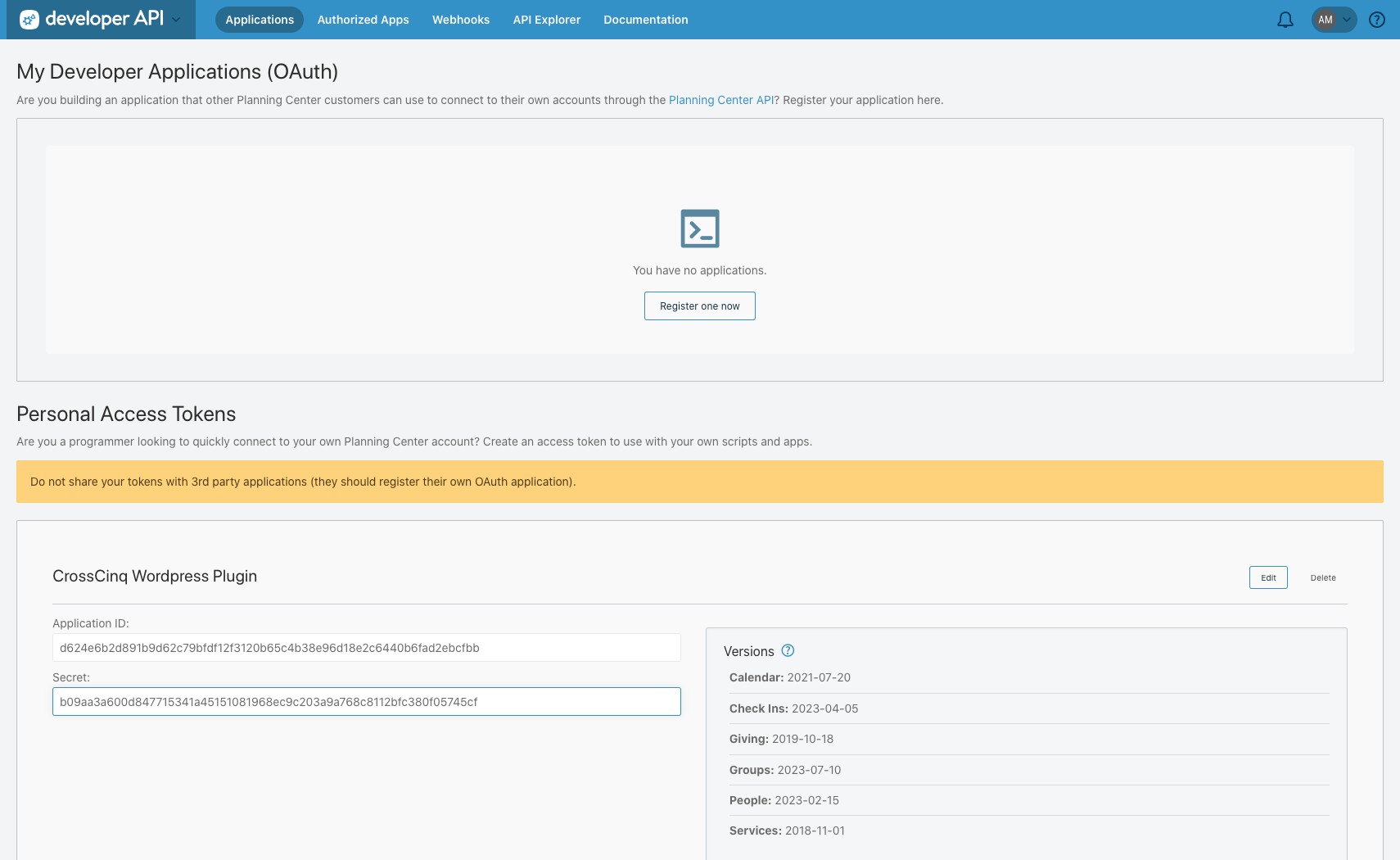
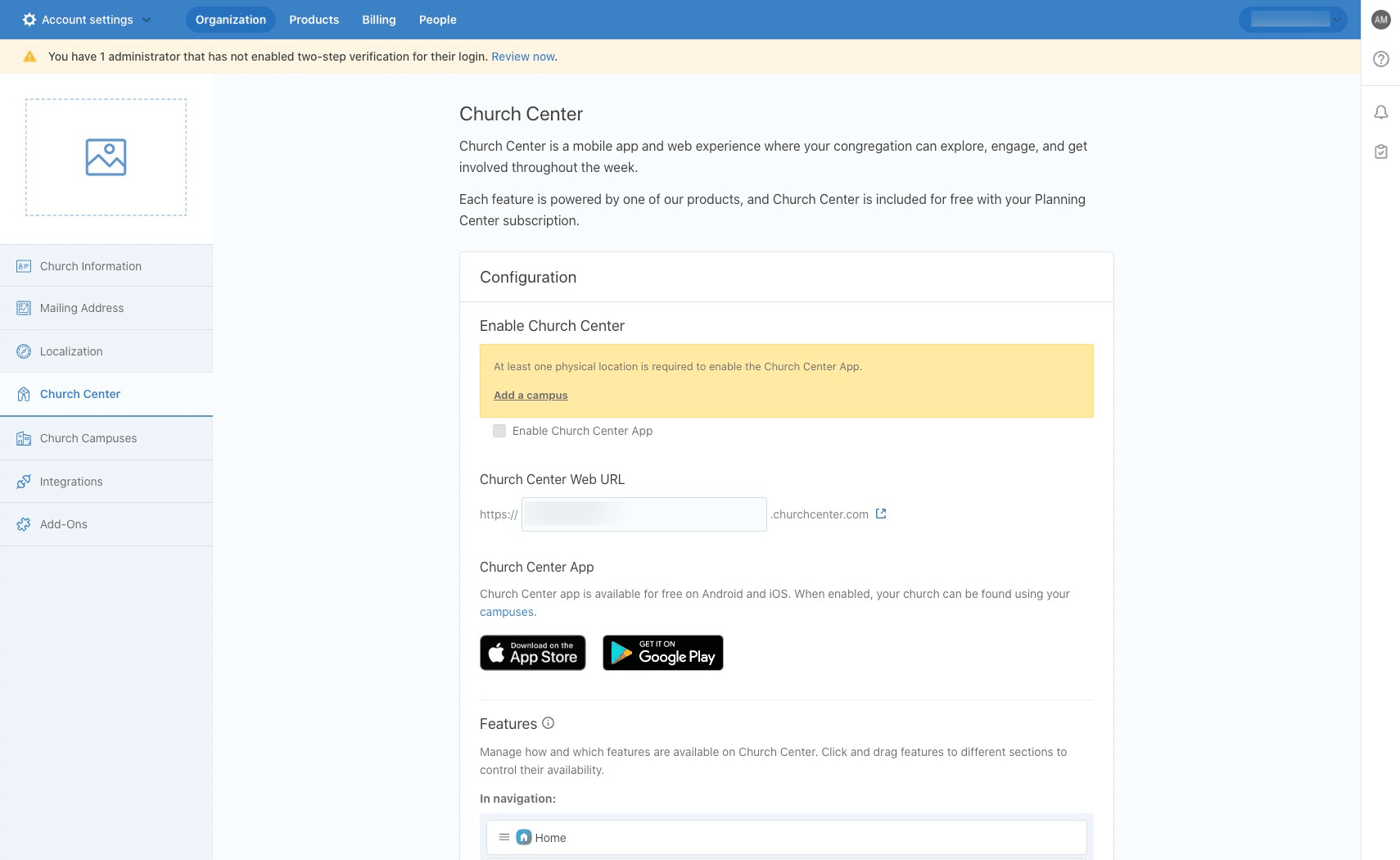
Click on "Account settings"
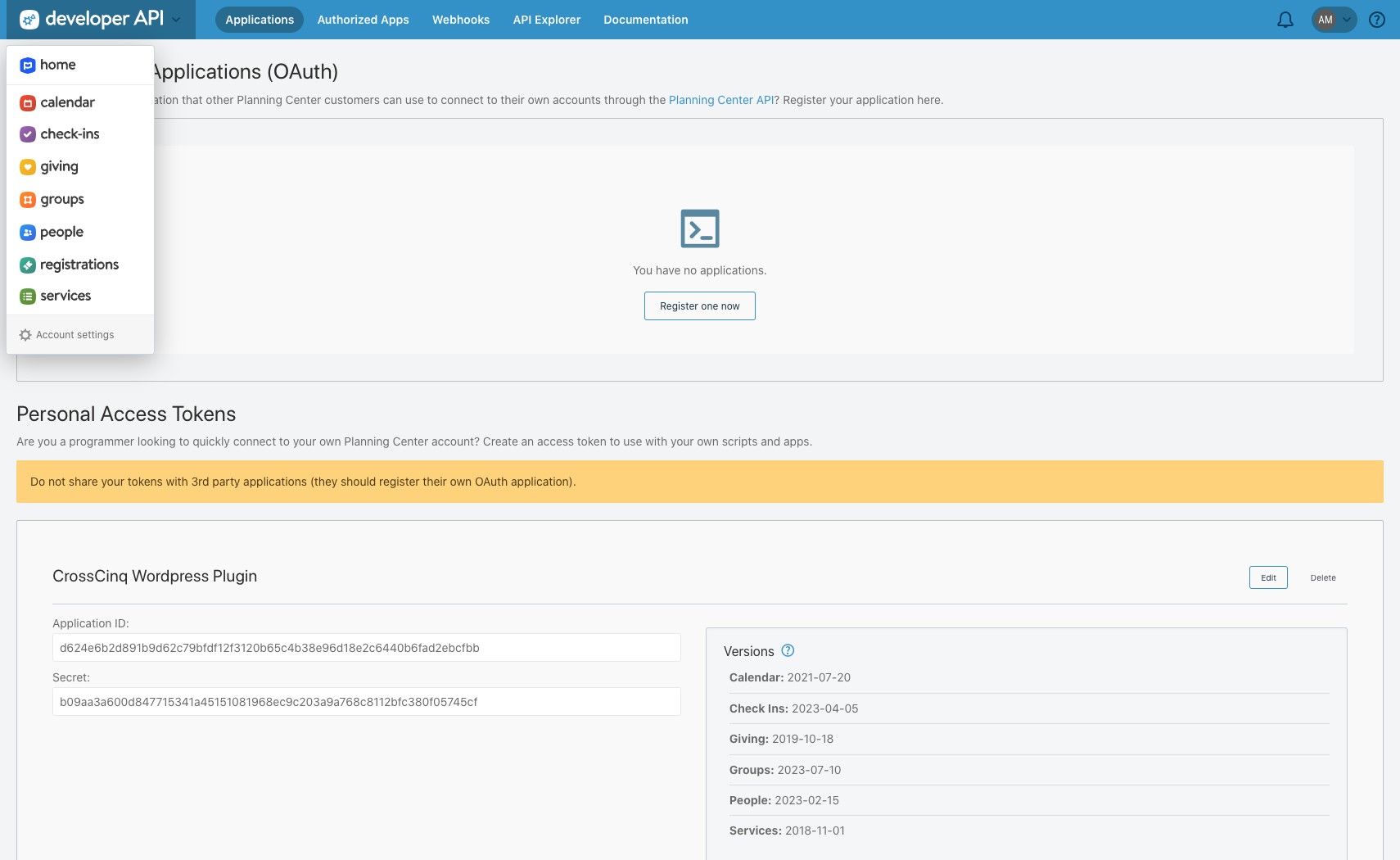
Click on "Church Center"
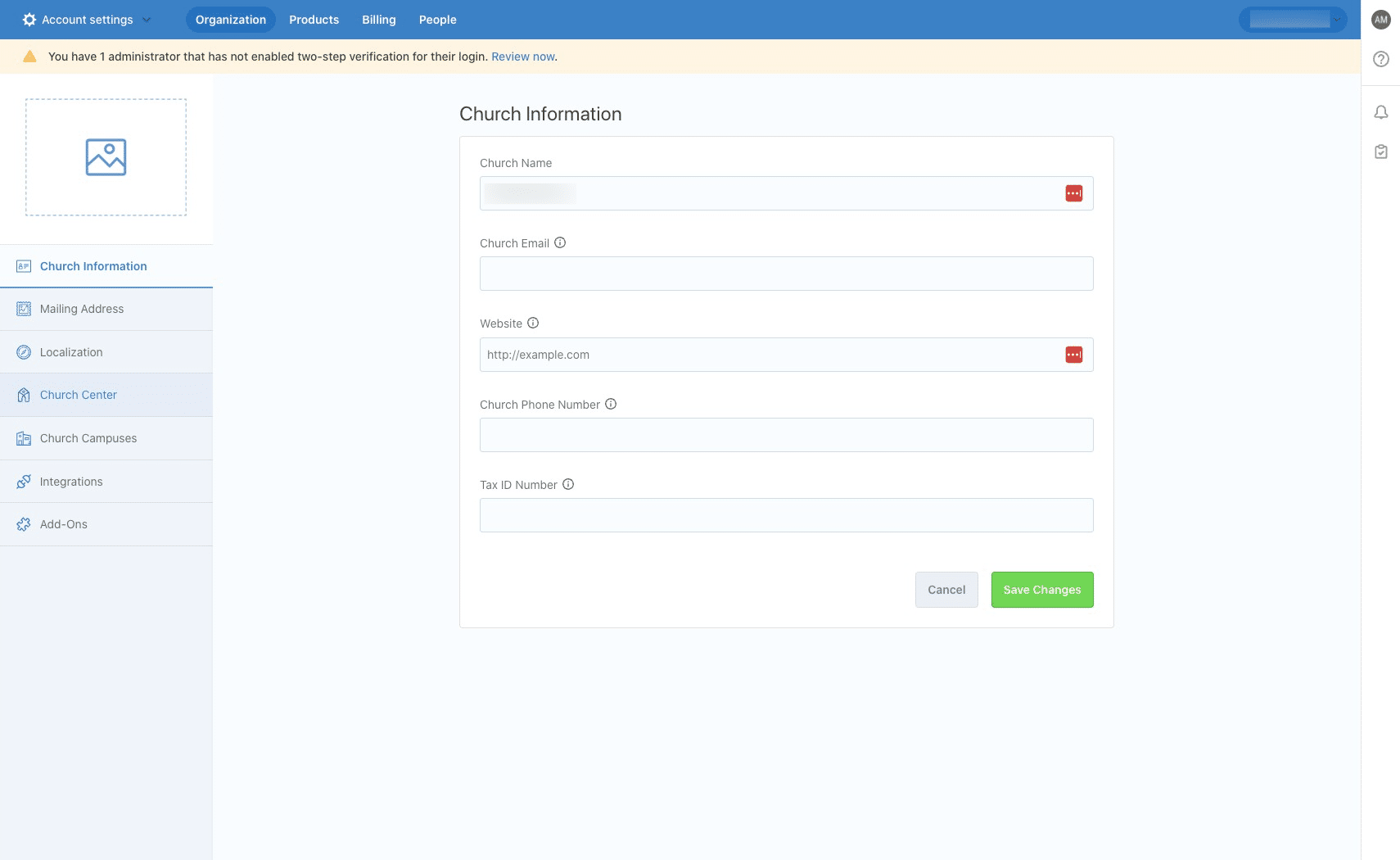
Copy the text in the "Church Center Web URL" text box
Go back to your site and paste the "Chuch Center Web URL" text, that you just copied, in the "Enter Your API URL Subdomain" text box
Click "Save Changes" and you're done 🚀